


Why a Self-Emptying Robot Vacuum Is a Game Changer
We know setup can feel daunting, but a self emptying robot vacuum truly saves time, reduces chores, and contains dust better to help reduce allergies and mess. This guide walks you step by step through setup, optimization, and regular care.
What You’ll Need Before You Start

Unbox and Inspect: Don’t Skip This
Think it’s just plug-and-play? A quick check prevents headaches—here’s what many users miss.Unbox the robot and lay out every item on a clean surface. Remove all protective films and tape from sensors, camera windows, brushes, and the dustbin—these often block performance.
Inspect the robot and base for dents, cracks, or loose parts. Note the model and serial number (usually on the underside or in the base). Read the quick‑start safety notes before first use.
Check accessories and consumables:
Document any missing or damaged items. Photograph defects, record the serial number, and contact manufacturer support via their website or phone with those details for fast replacement. Set aside included documentation and register the product online to activate warranty.

Position the Base Station for Best Performance
Placement matters more than you think—bad docking equals poor cleaning and lost time.Choose a flat, stable spot next to a power outlet and leave 1–2 meters (3–6 ft) clearance on both sides and in front so the robot docks and undocks easily. Place the base on a hard surface (tile, hardwood); avoid putting it on carpet or rugs.
Avoid tight corners, direct sunlight, or behind furniture where sensors might glare. Keep the base within good Wi‑Fi range—ideally in the same room or one room away from your router for reliable app and mapping updates.
Keep the base on the main floor for daily use; if you need upstairs cleaning often, consider a second base. For pet homes, move the dock away from feeding areas, litter boxes, or heavy pet traffic. Temporarily shift a coffee table or chair to create a clear docking corridor during setup.
Connect to Power, Charge, and Update
A fully charged, updated robot runs smarter—don’t skip firmware and battery checks.Plug the base into a nearby outlet and seat the robot firmly on the dock so charging pins align. Let the robot charge to the recommended level before the first full run (often 100%; typically 4–6 hours). For example, charge overnight until the app shows full.
Check battery status in the app or on the robot’s display, then initiate firmware updates via the app or on-device menu. Updates improve navigation, add features, and fix bugs—install them before mapping.
If an update fails, follow these steps:
Calibrate the battery by charging to full, running a normal clean cycle, then recharging to full once; avoid deep discharges.
Install and Configure the App and Wi‑Fi
App setup unlocks features—maps, schedules, voice control—so get it right the first time.Download the manufacturer app from the App Store or Google Play. Create an account and sign in; use a real email for recovery.
Connect the robot to your home Wi‑Fi: choose 2.4 GHz (most robots require it) or use a dual‑band SSID that supports both. Prefer WPA2, enable DHCP, disable AP/client isolation, and keep channel width at 20/40 MHz for reliability.
Grant required permissions in the app:
Name the robot and rooms (for example: “Kitchen Roomba” or “Upstairs Vacuum”) during setup.
Enable cloud features if desired; link the app to Alexa or Google Assistant via the respective skill/action and authorize access.
Troubleshoot connection failures: restart phone/router/robot, ensure your phone is on 2.4 GHz during pairing, move closer, and factory‑reset the robot if needed. Adjust router SSID settings if pairing still fails.
Map Your Home and Set Boundaries
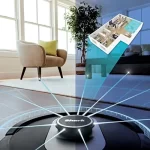
Want a vacuum that knows your home like you do? Mapping is the secret weapon.Initiate mapping runs during an empty-house or quiet time (overnight or while you’re out). Let the robot complete full passes so it captures edges and furniture positions.
Save the first map as your primary floor. Edit room names (e.g., “Kitchen”) and merge or split areas in the app to match how you think about rooms.
Draw no-go and no-mop zones for delicate or hazardous areas (baby room, pet bowls, cables). Add virtual walls or straight-line barriers for long corridors.
Use multi-floor mapping by placing the robot on each floor, starting a new map per level or moving the base if your model supports it. Prioritize high-traffic zones by setting them to clean more often in schedules.
Rerun mapping after major furniture moves or renovations to keep navigation accurate.
Optimize Cleaning Schedules and Maintenance Routines
Set it and mostly forget it—small tweaks deliver consistently better results.Create a schedule based on household traffic and pet shedding: daily for busy homes or heavy-shedding pets, alternate days for moderate use. Run cleans when rooms are clear (overnight or while away) to maximize coverage.
Select room-specific modes and suction: use low/quiet on hardwood and bedrooms, standard for living areas, and max/rug boost for carpets or pet zones. Example: set Kitchen to spot-clean after meals.
Follow this maintenance checklist:
Review cleaning history in the app and troubleshoot: clear obstacles for “stuck” alerts, clean filters/brushes for low suction, rerun or reset maps for mapping errors, and install firmware updates when available.
Enjoy Hands‑Free Clean Floors
With proper base placement, reliable power and Wi‑Fi, smart mapping, sensible schedules, and simple maintenance, a self‑emptying robot becomes truly low‑effort. Check firmware and settings periodically, try it now, and share your results and tips for cleaner, easier living today.





Mapping and setting boundaries was oddly fun. The app let me create room names and I blocked off the messy kid corner. Now the robot cleans specific rooms when guests are coming — super handy.
Also, don’t forget to save your map after edits.
Pro tip: if you have rugs that move, use the app’s boundary tool instead of relying on edge detection. Saved me from a rug-munching drama.
Exactly — saved maps are key for scheduling room-based cleanings. Some models support multiple floor maps too, so label them clearly.
Maintenance tip: Clean the brushes and sensors weekly for pet hair homes. The guide’s section 6 is spot on but make the brush-cleaning step part of your calendar.
I set a recurring reminder on my phone for every Sunday morning. My robot’s suction stayed consistent since.
Great routine! Weekly maintenance is a sweet spot for most households with pets or lots of foot traffic.
I use a lint roller on the brushes before the weekly deep clean — saves time and stops hair wrap.
Does anyone actually vacuum the robot’s filter? I kinda just shake it out… is that bad?
Love the ‘hands-free’ promise but a question: for allergy sufferers, does auto-emptying actually help reduce allergens or just move dust into a bag you still open later?
Thinking of buying one but want to know if it genuinely lowers airborne particles.
Auto-empty reduces how often you handle dust and can cut down on re-suspension from frequent bin emptying. Look for models with sealed dust bags and HEPA-grade filtration for best allergy results.
I have seasonal allergies and noticed fewer sneezes after switching to a robot with sealed bags. Still, I empty the bag outdoors just to be safe.
Honestly, love the idea but the mapping feature made my floor plan look like modern art. It never recognized one of my chairs.
Still, better than sweeping.
Try temporarily moving that chair during the initial mapping runs or create a no-go zone around it in the app — that usually helps.
My robot ignores ottomans too. I set a virtual boundary once and it’s been chill ever since.
Quick note: Step 3 (charge and update) is actually crucial. I skipped the firmware update and the app wouldn’t connect properly.
After updating, the mapping worked flawlessly.
Good catch. We recommend keeping auto-updates enabled once you’re happy with the setup so the device stays compatible and secure.
Same here. The first firmware fixed my docking issues. Always check for updates before you start mapping!
Having Wi‑Fi trouble here. Guide’s Step 4 gave a good walkthrough but my vacuum keeps dropping from the app when I move it to the bedroom (router is in living room).
Router is dual-band. Anyone got tips for a better connection without buying a mesh system?
I set a cheap Wi‑Fi extender near the hallway and it fixed disconnects. Not full mesh but less than a new router price.
Try assigning the vacuum to the 2.4 GHz band if your router separates bands — many robot vacuums prefer 2.4 GHz for range. Also, avoid placing the base behind big appliances or metal shelving.
Also check for AP isolation settings on your router — some security settings block device-to-device communication.
If your router has a guest network, don’t put the vacuum on it — limited access can block device updates and map uploads.
App setup was a bit clunky on my old phone, had to reboot twice. After that, the firmware update (step 3) and privacy permissions were the sticking points. Make sure you allow location access if the app asks.
Also, enable notifications for ‘bin full’ and ‘filter change’ alerts — they’ll save you from stinky surprises.
If you’re worried about privacy, check what data the app collects in settings. Some brands let you limit telemetry.
Thanks for noting that. Many phones require location for scanning local Wi‑Fi even if the vacuum itself doesn’t use location — it’s an OS requirement.
Yep – location permission is weird but necessary. Turned it on and the onboarding went smooth.
Finally pulled mine out of the box yesterday — this guide was super helpful.
I followed 1 & 2 (inspected everything, then moved the base to a low-traffic corner) and wow: way fewer failed docks overnight. Mapping took two runs and now the robot avoids the messy kitchen rugs.
Two tips I’d add: put the base against a wall that doesn’t get direct sun (wifi weirdness) and flip on auto-empty only after the first week so you can see how often it actually fills.
Thanks for the clear steps!
Great to hear, Emily — glad the guide helped. Good call on waiting a week before full auto-empty to understand debris volume.
How many mapping runs did you do? Mine still thinks the balcony is a room lol.